Received an Invite?
Welcome to the Eved Network
Your client has chosen Eved to manage their vendor payments. Getting set up takes about 10 minutes — here's everything you need to know.
Global Vendors
Of Innovation
Languages Supported
Faster Reconciliation
Ready to get started?
Click the button below to create your Merchant Account and begin receiving payments through Eved.
Create Merchant AccountWhat you'll need before you start:
The invitation email from your client
Your business name and contact info
Business address and phone number
Bank account details (routing + account)
W-9 (US) or W-8BEN (International)
Don't have all of this ready? No problem — bank and tax information can be added later.
Step-by-Step Guide
Your onboarding journey
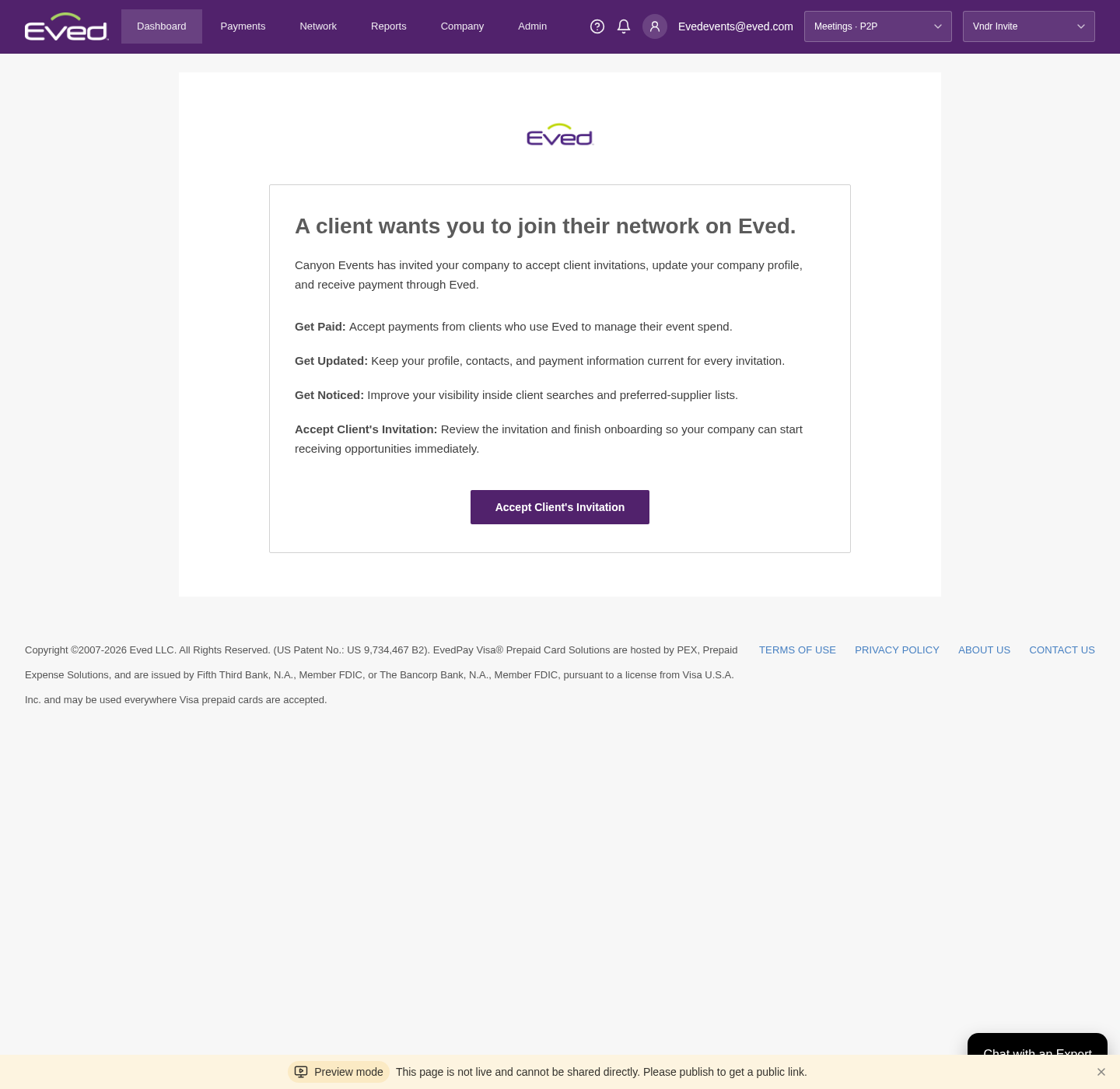
Accept the Invitation
You'll receive an email from Eved on behalf of your client. Click the "Accept Client's Invitation" button to begin onboarding.
Tip: Use the same email address that received the invitation when creating your account.
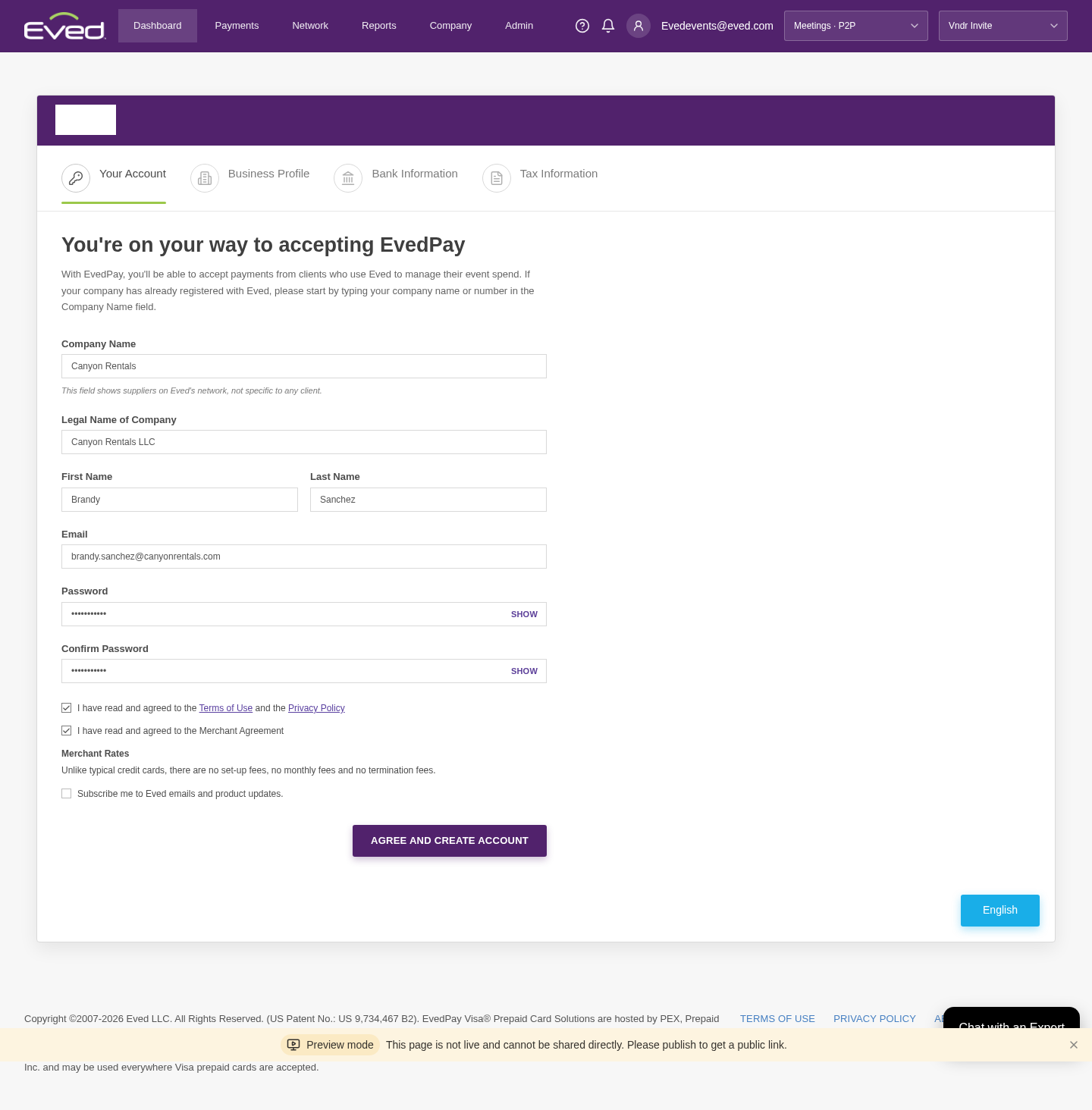
Create Your Account
Enter your company name, your personal details, and set a password. Agree to the terms to create your account.
Tip: No set-up fees, no monthly fees, and no termination fees.
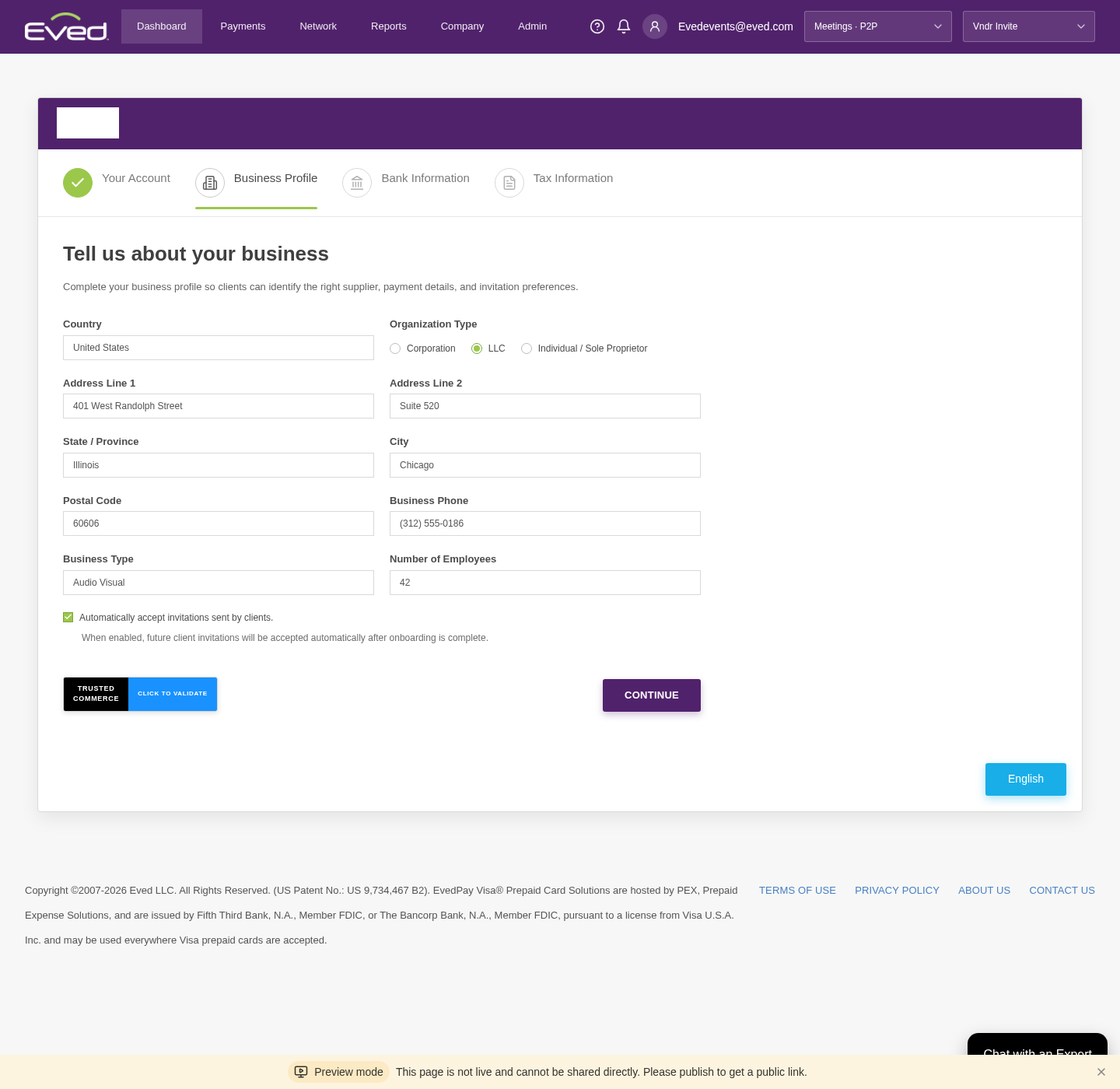
Complete Your Business Profile
Tell us about your business — address, organization type, phone number, and employee count. You can also enable auto-accept for future client invitations.
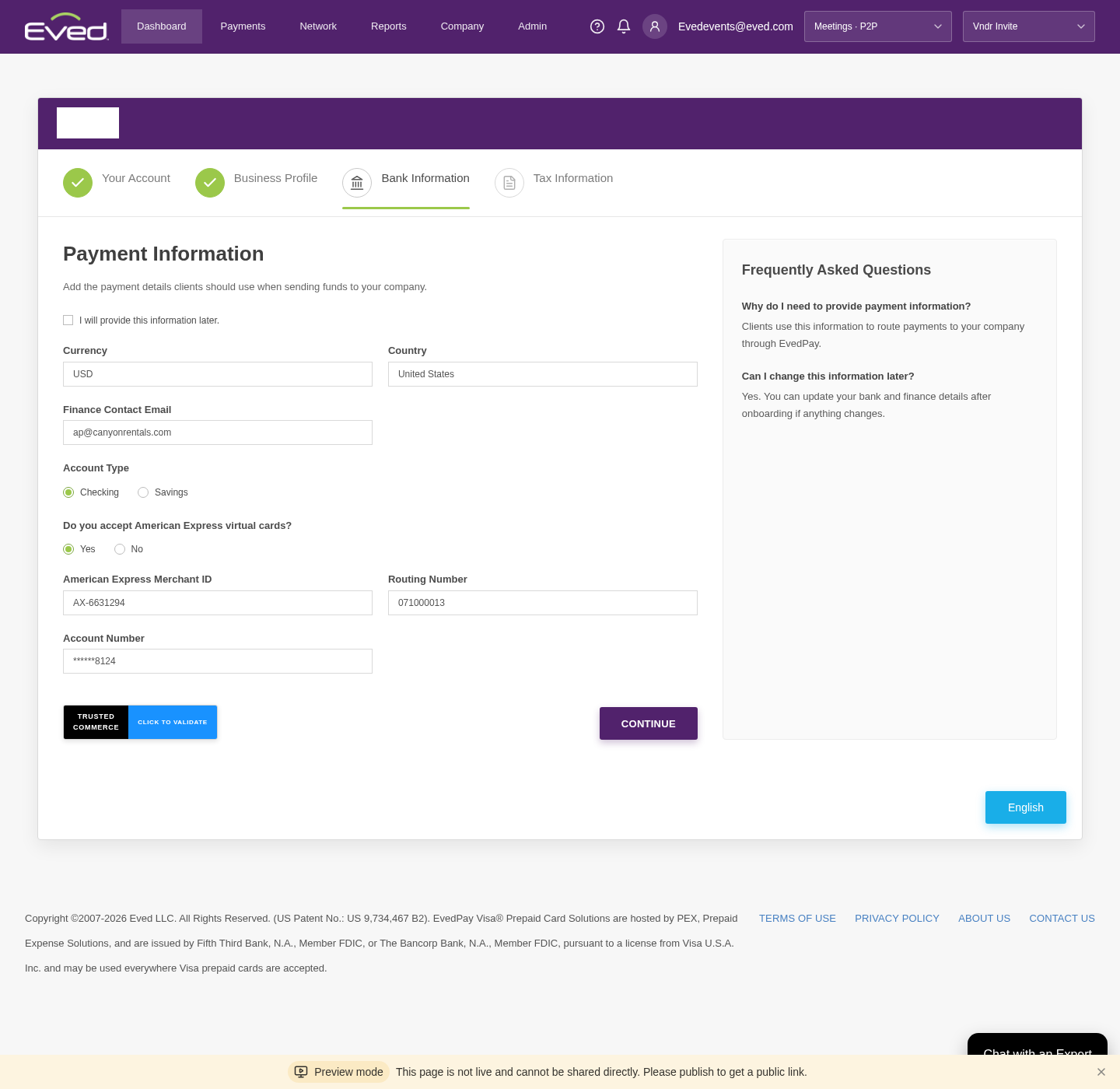
Add Payment Information
Add your bank details so clients can route payments to your company through EvedPay. You can skip this step and add it later.
Tip: You can update your bank and finance details anytime after onboarding.
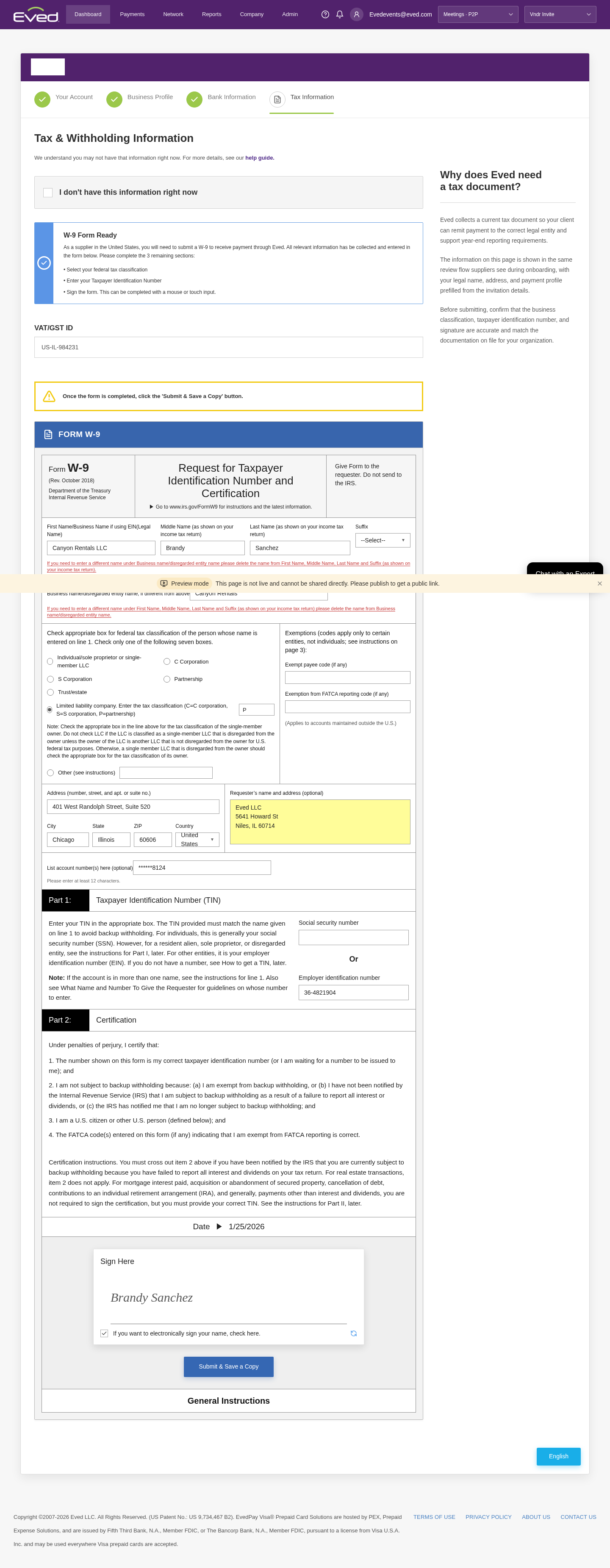
Submit Tax Documentation
Complete your W-9 (US) or W-8BEN (International) so your client can remit payment to the correct legal entity. You can skip this and provide it later.
Tip: Don't have your tax info handy? You can check "I don't have this right now" and come back later.
You're All Set!
Once setup is complete, your account is ready to receive RFPs, purchase orders, and payments from your client.
Bookmark the login page: Sign in through the main Eved website instead of reusing the invitation email.
Add multiple users: Create additional users so staff changes don't block ongoing work.
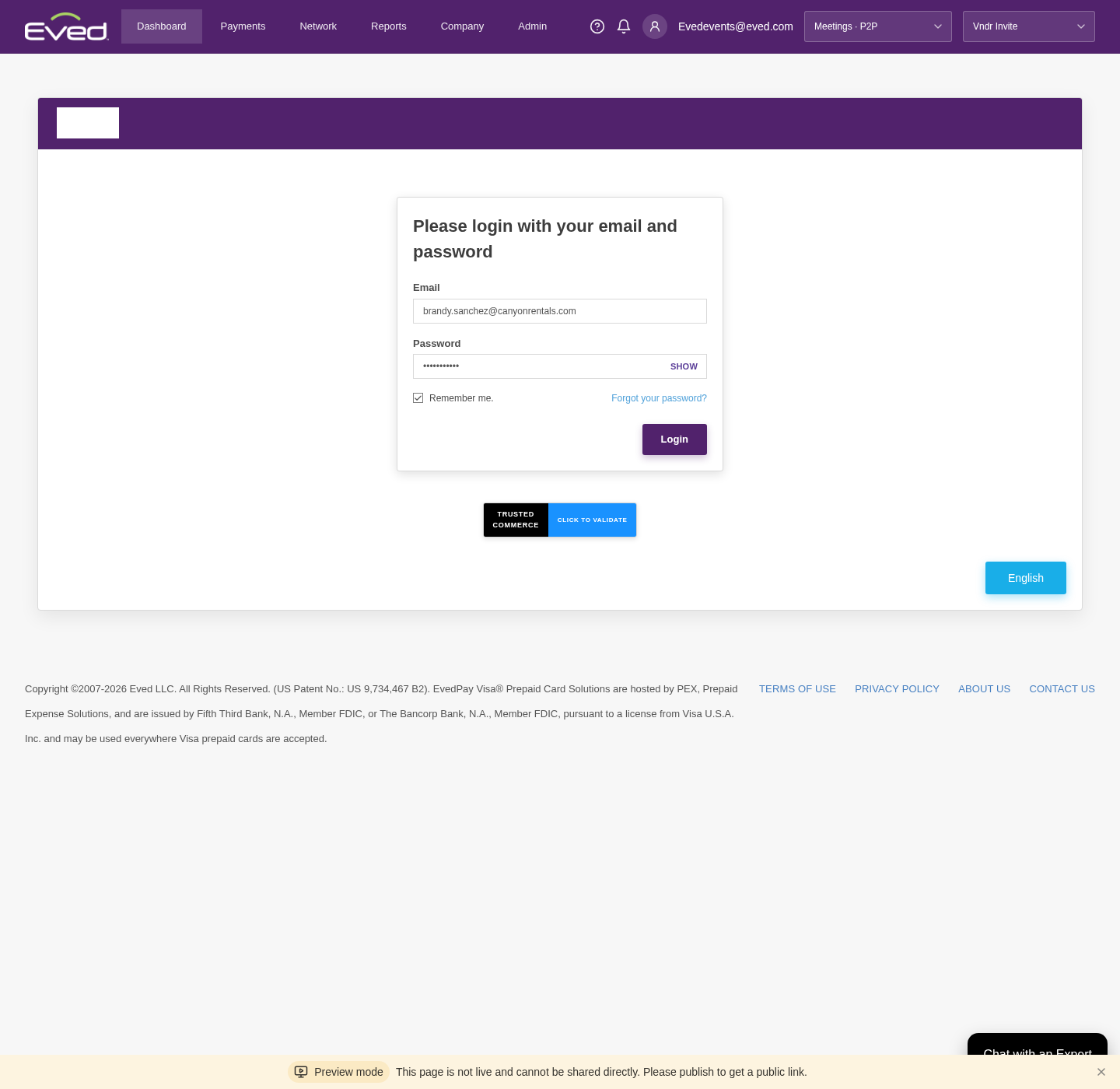
Important: Use the Same Email Address
When creating your account, you must use the same email address that received the invitation. Otherwise, your company may not be connected to your client's preferred vendor network.
Can't find your invite?
Check Spam
Look in your spam or junk folder for an email from Eved.
Contact Your Client
Ask your client to resend the invitation through Eved.
SOC 2 Type 2 certified · PCI DSS compliant · No set-up fees, no monthly fees, no termination fees